
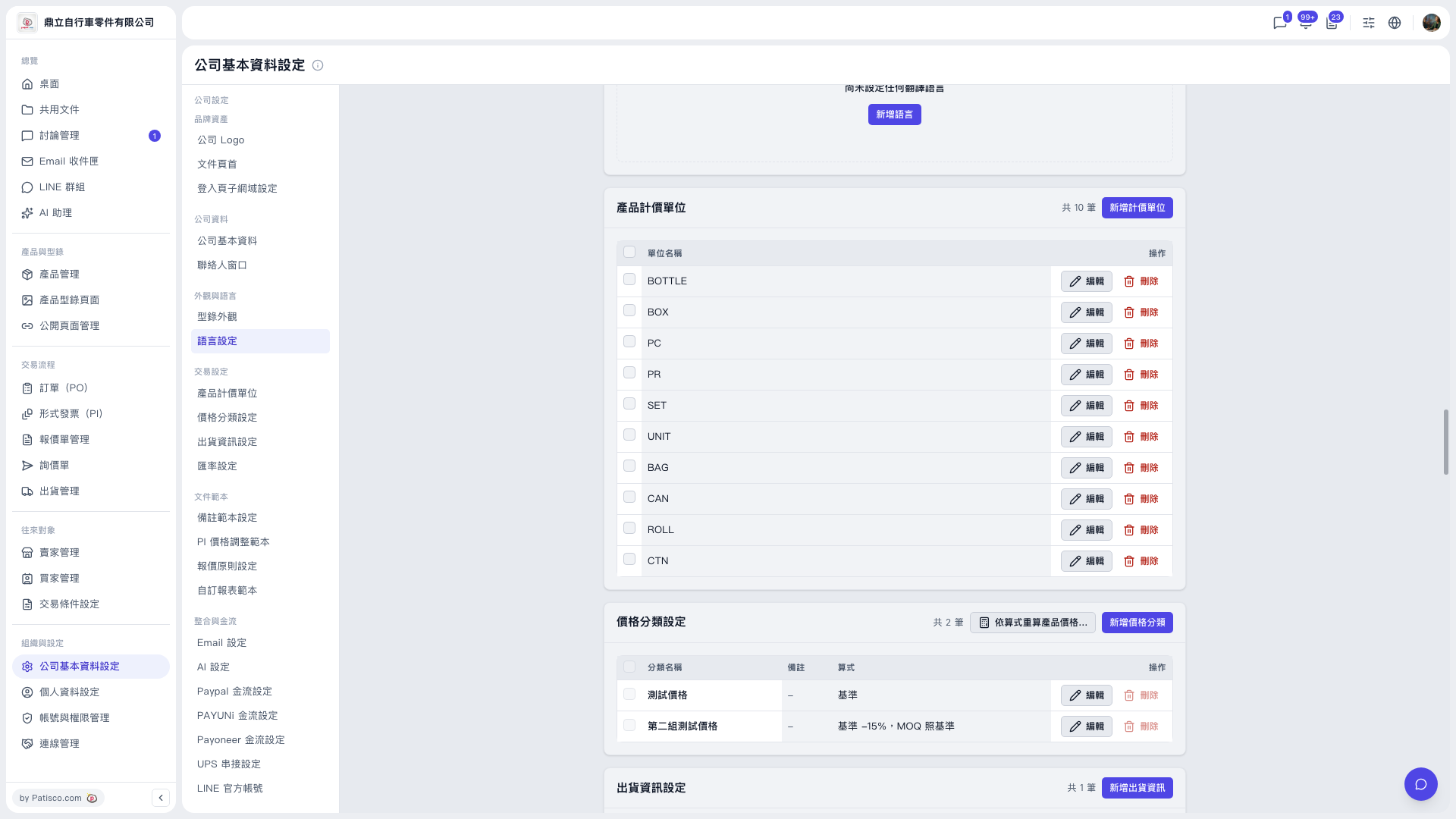
1. In the left sidebar, click "Company Profile Settings", then under the submenu "Trading Condition Setting", click "Price Category Settings". 2. In the "Price Category Settings" section, check the existing categories and their formulas. 3. To adjust a formula, click "Edit" on the right side of that row, make your changes, and save. 4. Once the formula is saved, click "Recalculate product prices by formula..." on the right side of the section title bar. 5. Confirm following the on-screen prompts, and product prices will be recalculated according to the new formula.
Note: A preview is shown before recalculation. Taking the demo account as an example (base "Test Price" → "Second Test Price", formula is base -15%, rounded to the nearest integer, scope is all 19 products), the preview shows 13 to fill in, 0 to overwrite, 4 to keep, and 2 to skip. The main buttons for both "Fill only" and "Overwrite all" are "Write 13 items". Click only after confirming the numbers are correct; if you do not want to write anything, do not click.
 V5 新桌面版|公司基本資料設定