
1. Go to "Products & Catalog > Product Management" and click "Import" at the top right, or open the bulk product creation dialog, select "From Excel file" in the tabs at the top, and upload the file. 2. In step 2, "Column mapping", look row by row at "Your column", "Sample value", and "Maps to system field" to confirm they are mapped correctly. Pay special attention to rows marked "Guessed" or "Not mapped". 3. To change one, click the "Maps to system field" dropdown in the middle of that row and select again, for example "SKU", "Product name", "Currency", "Suggested retail price (MSRP)", "Tier 1 unit price", or "Tier 1 MOQ". 4. For columns you do not want to import, select "Do not import" in the dropdown. 5. After confirming, click "Next" at the bottom right of the dialog to go to step 3, "Value mapping". To re-upload the file, click "Back"; to cancel the import, click "Cancel".
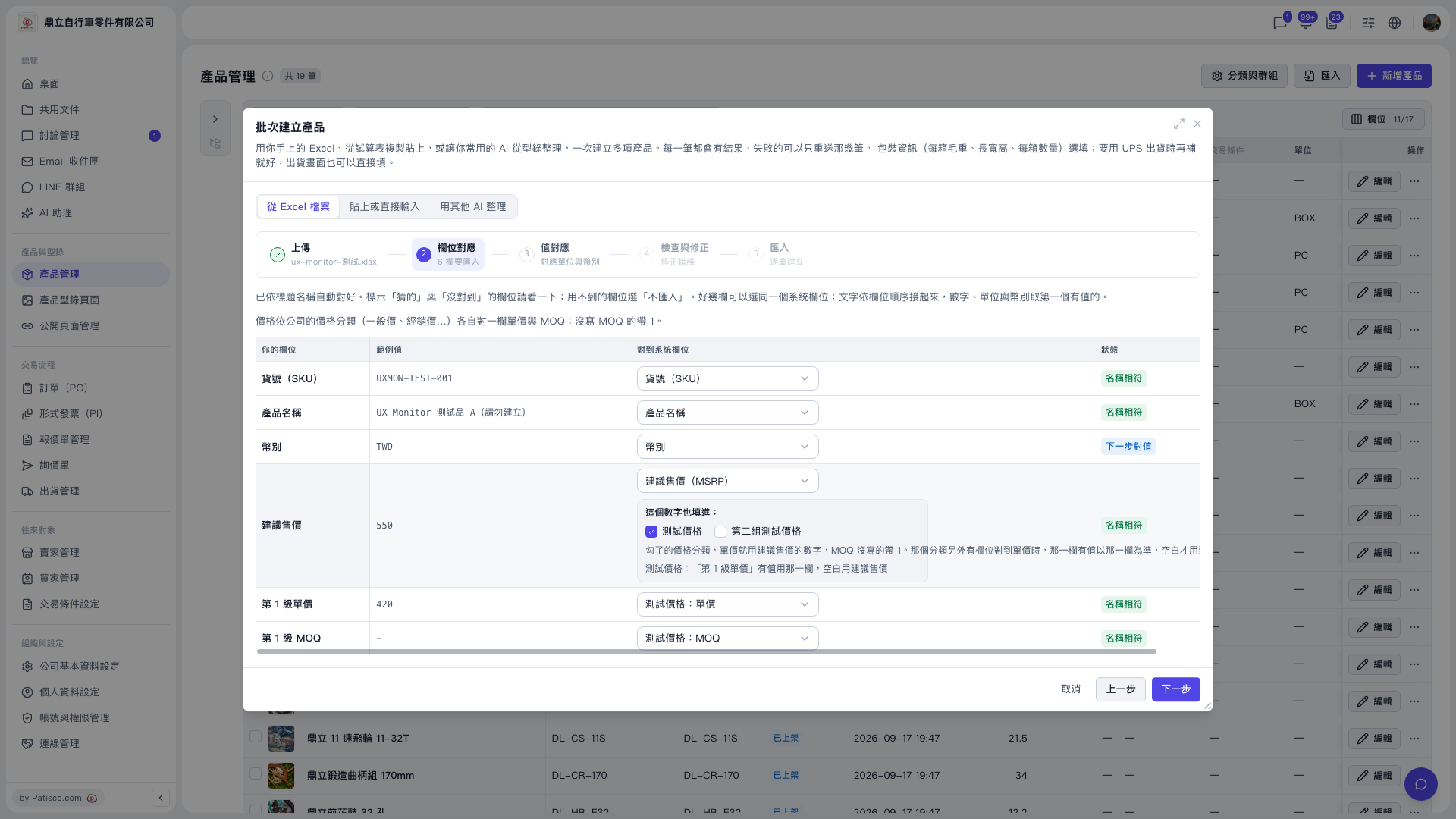 V5 新桌面版|產品管理(批次建立產品:步驟 2 欄位對應)