
1. In the preview table of Step 4 "Review & Fix", click the cell directly to edit it, for example to fill in "Test price: Unit price" or "Test price: MOQ". Changes made here only affect this import and do not change the original file. 2. If an MOQ cell shows "Blank" and you don't fill it in, the default value of 1 is used when the product is created. 3. To exclude a row from the import, select that row, or click "Skip" at the far right of the row. After excluding rows, you can use the "Skipped" quick filter to check them again. 4. Once all statuses show "Ready to import", click "Next" at the bottom right of the dialog to go to Step 5 "Import". The system will create the products one by one. 5. To adjust earlier settings, click "Back" (returns to Step 3 "Value mapping"). To abandon the import, click "Cancel"; no data will be imported.
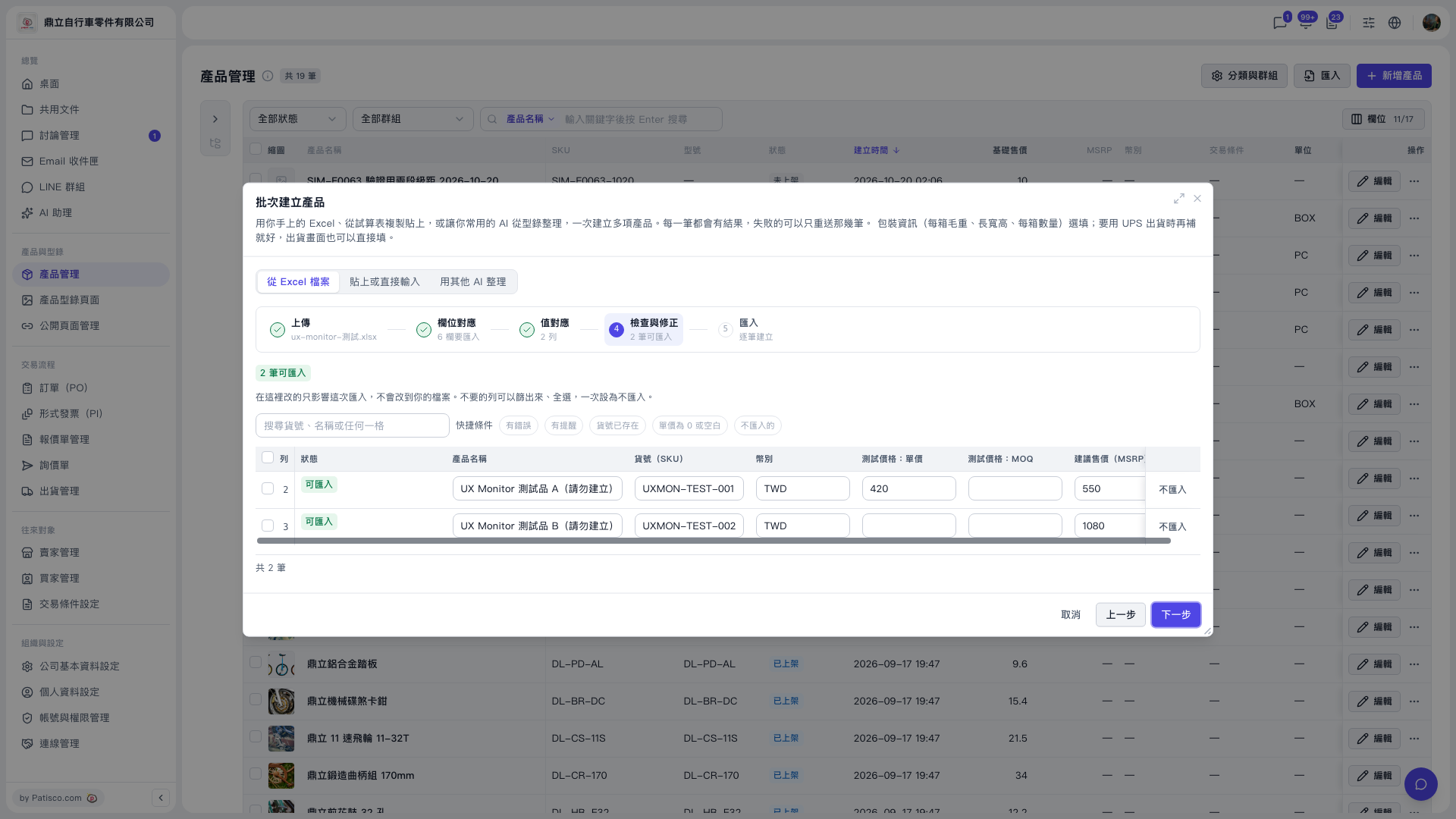 V5 新桌面版|產品管理(批次建立產品 — 步驟 4:檢查與修正)