
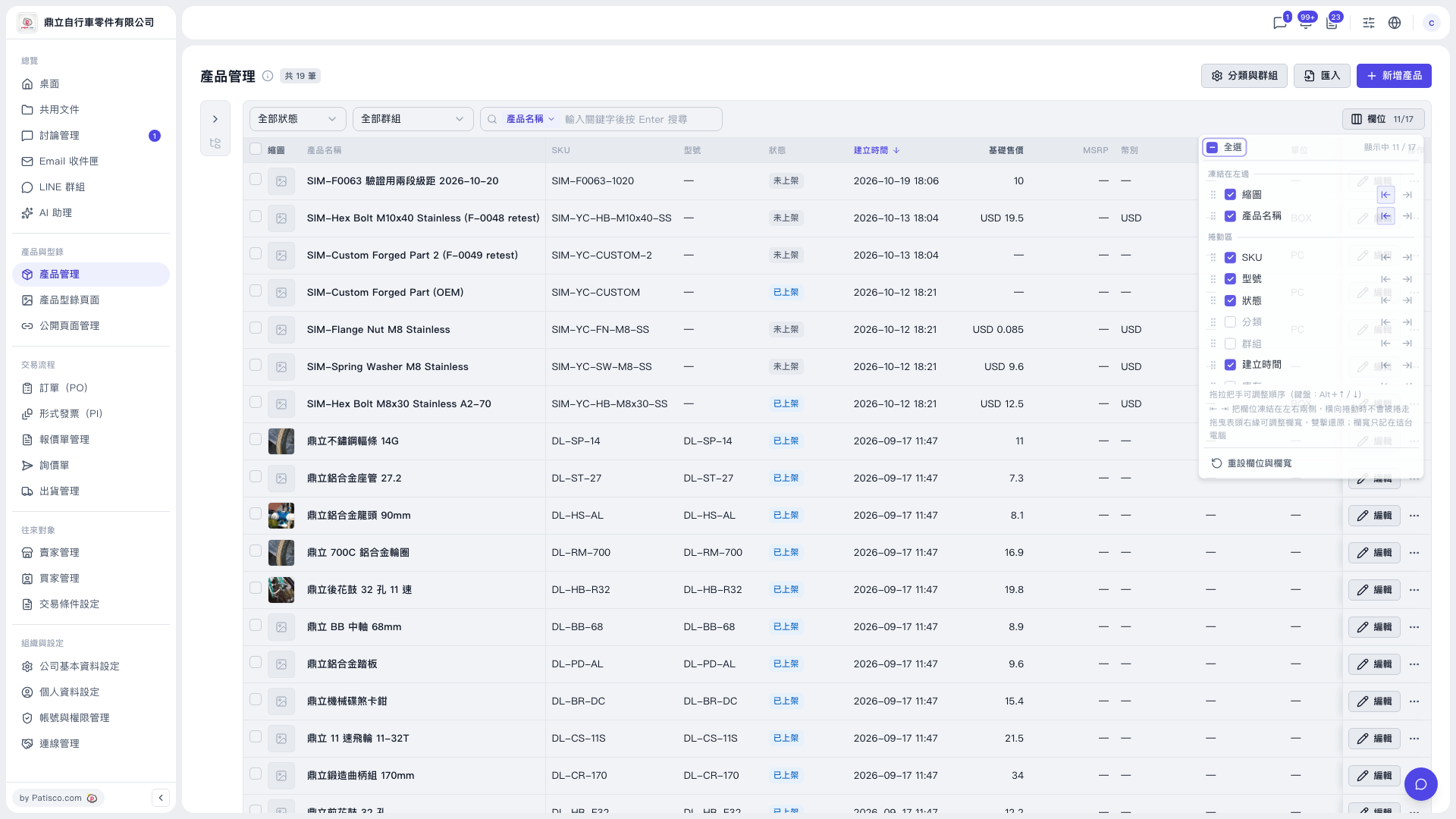
1. Click "Columns 11/17" above the table to open the column settings panel. 2. To change the order: drag the handle in front of a column; with the keyboard, press Alt + ↑ / ↓. 3. To freeze a column: click the freeze icon on the right side of that column to freeze it on the left or right. Frozen columns stay in place when you scroll horizontally. 4. To adjust a column width: drag the right edge of the column header; double-click the edge to restore that column's width. 5. To restore everything to the defaults: click "Reset columns and widths" at the bottom of the panel. Column visibility and widths return to their default values. 6. Click anywhere outside the panel to close it.
 V5 新桌面版|產品管理