
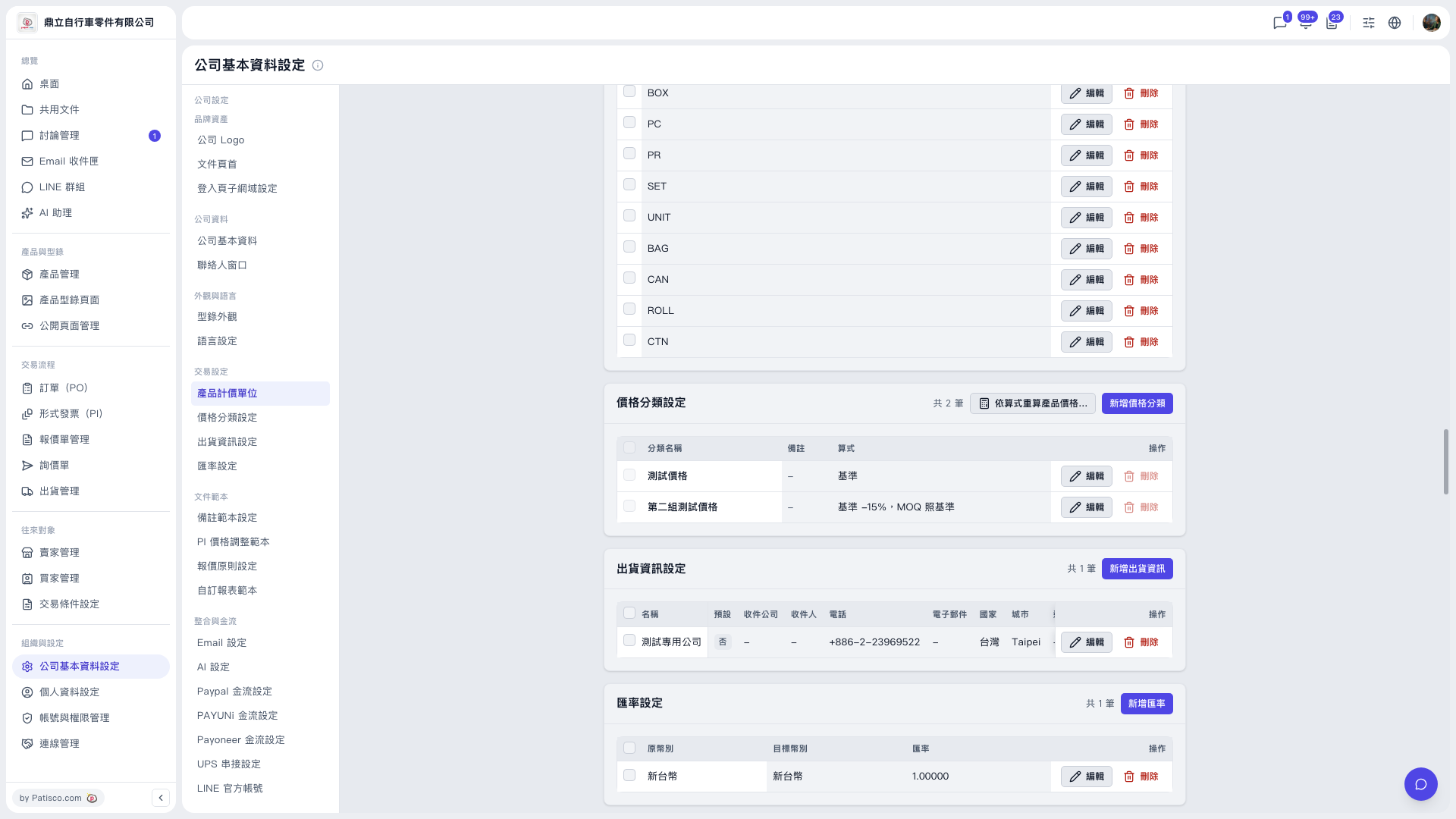
1. In the left sidebar, click “Company Profile Settings”, then click “Price Category Settings” in the sub-menu (or open the URL with #price-category appended). 2. In the “Price Category Settings” section, check the current formula of each category. 3. To adjust a formula, click “Edit” on the right of that row, make your changes, and save. 4. After the formula is updated, click “Recalculate product prices by formula...” on the right side of the section title bar. 5. Confirm the recalculation scope following the on-screen prompts, check the preview, and then run it. Product prices will be updated according to the new formula.
Example (demo account): The formula of “Second Test Price” is “base -15%, round half up to integer, MOQ same as base”, and the base is “Test Price”. When all products (19 items) are selected, the preview shows: fill in 13, overwrite 0, keep 4, skip 2. The main button for both “Fill only” and “Overwrite all” is “Write 13 items”. Check the number of items in the preview carefully before clicking.
 V5 新桌面版|公司基本資料設定