
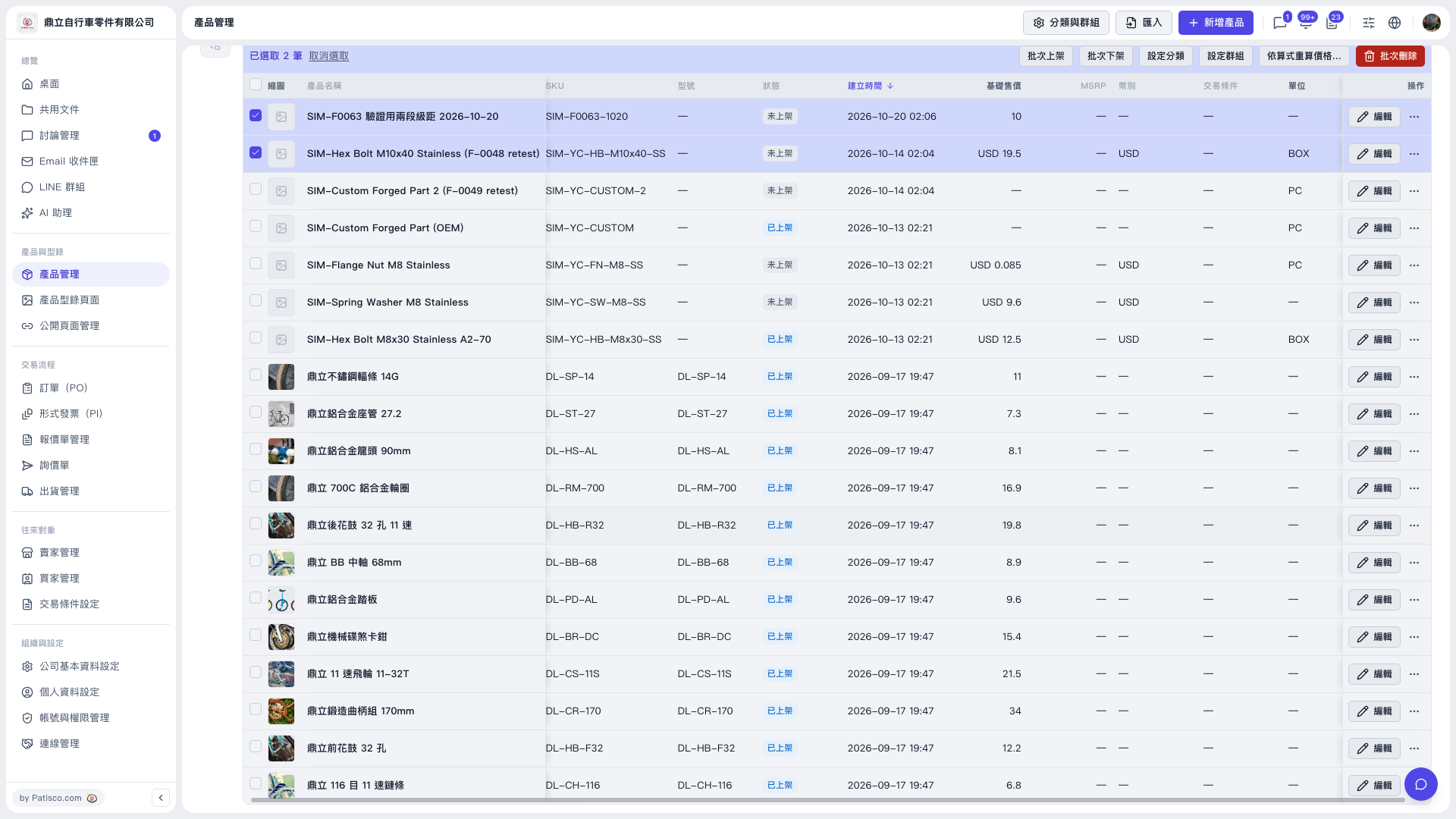
1. In the “Product Management” list, tick the products you want to recalculate (multiple selection is allowed). 2. Click “Recalculate prices by formula…” in the batch action bar. 3. Choose which price category to recalculate from and which to recalculate to. Using the demo account (鼎立自行車零件有限公司) as an example, you can recalculate from the base “Test Price” to “Second Test Price”, with the formula base -15%, round half up to integer, MOQ same as base. 4. The system first shows a preview listing how many rows will be “Filled in, Overwritten, Kept, Skipped”. The preview for 2 selected products in the demo was: fill in 0, overwrite 0, keep 2, skip 0. 5. After confirming, press the main button and choose “Fill only” or “Overwrite all”. The button shows “Write N items”. In this preview, both buttons showed “Write 0 items” because there was no data to fill in or overwrite, and they were not pressed during testing. 6. If you do not want to write, close the window, or go back to the list and click “Clear selection”. Tip: Before recalculating, check the item counts in the preview and make sure the number to be written matches your expectation before submitting.
 V5 新桌面版|產品管理