
1. On the Product Management page, click "Import" at the top right to open the bulk product creation dialog, then select "From Excel file". 2. Complete the three steps in order: "Upload", "Column mapping", and "Value mapping". 3. In Step 4, "Review and fix", confirm that the "Status" of each row is "Ready to import". 4. If there are many rows, use the search box, or the quick filters to the right of it (Has errors / Has warnings / SKU already exists / Unit price is 0 or blank / Not importing), to find the rows you need to handle. 5. You can edit the following fields directly in the table: product name, SKU, currency, test price: unit price, test price: MOQ, suggested retail price (MSRP), and so on. 6. For any row you don't want to import, click "Don't import" on the right side of that row. 7. Once everything is correct, click "Next" at the bottom right to go to Step 5, "Import". The system will create the products one by one.
If you want to go back and adjust something, click "Back" to return to "Value mapping". Clicking "Cancel" closes the dialog without importing.
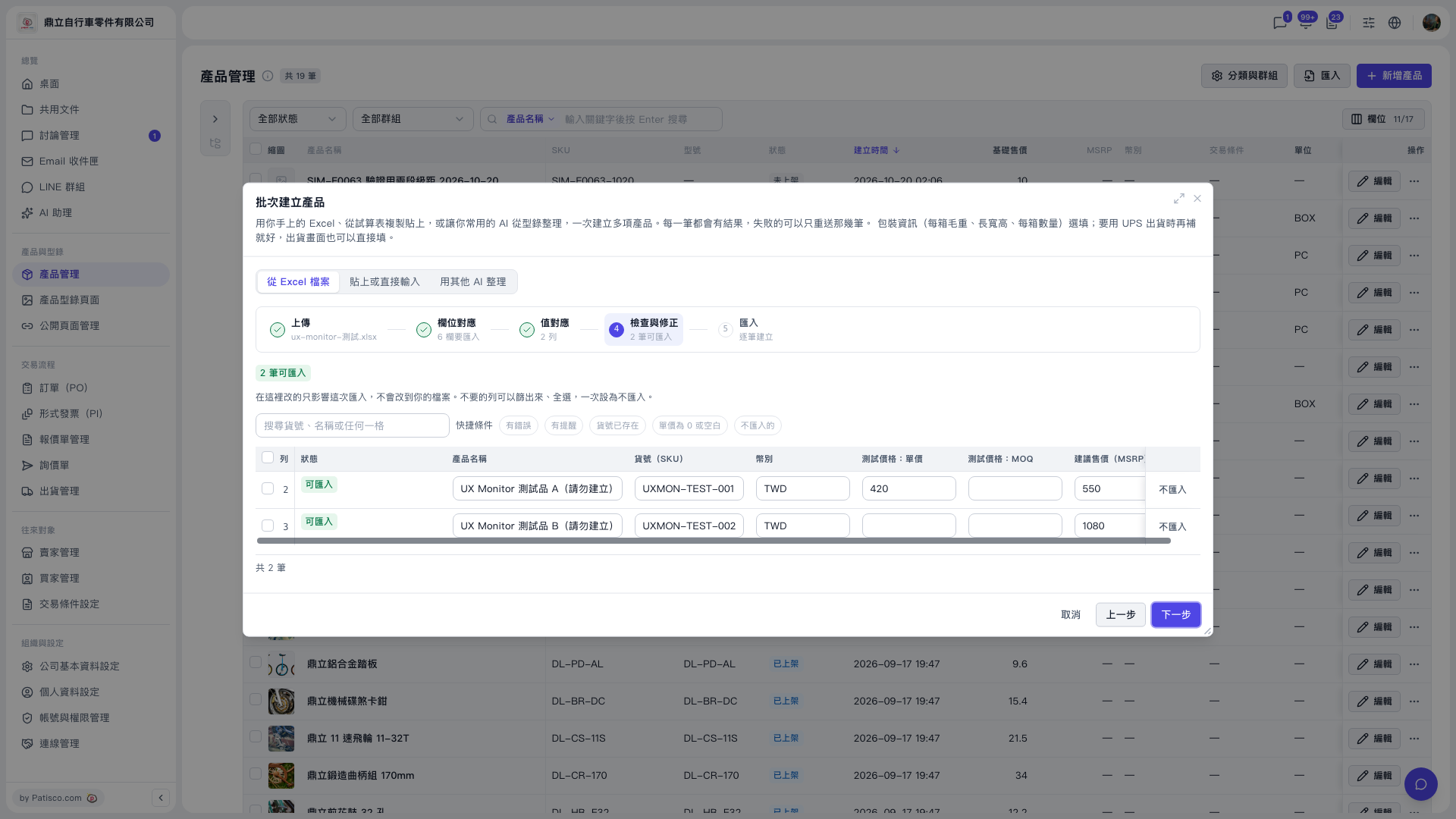 V5 新桌面版|產品管理(批次建立產品對話框:步驟 4 檢查與修正)