
1. On the Product Management page, click “Import” in the top right, or open the Batch Create Products dialog, select “From Excel file”, and upload your file. 2. In Step 2, “Column Mapping”, check whether “Your column”, “Sample value”, and “Mapped to system field” are correct in each row, for example Item No. (SKU), Product Name, Currency, Suggested Retail Price, Tier 1 Unit Price, and Tier 1 MOQ. 3. Look at the “Status” column: “Name matched” means it was mapped automatically; “Guessed” or “Not mapped” means you need to check it manually. 4. To adjust, click the “Mapped to system field” dropdown in that row and choose again; for columns you do not need to import, select “Do not import”. 5. When everything is correct, click “Next” at the bottom right of the dialog to go to Step 3, “Value Mapping” (mapping units and currencies). To go back and change the file, click “Back”; if you do not want to import, click “Cancel”. Afterwards, complete “Check & Fix” and “Import” in order.
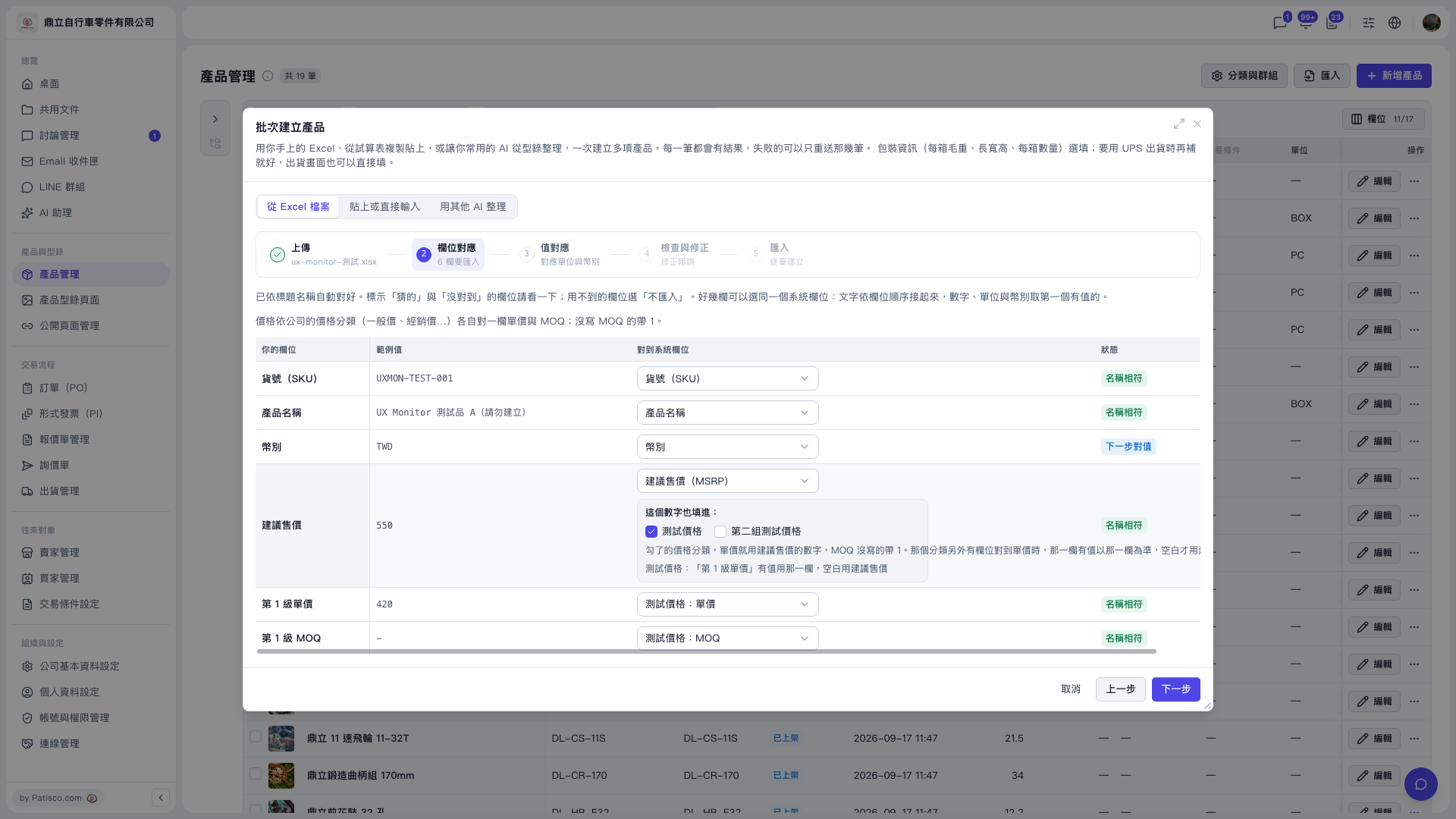 V5 新桌面版|產品管理(批次建立產品對話框:步驟 2 欄位對應)