
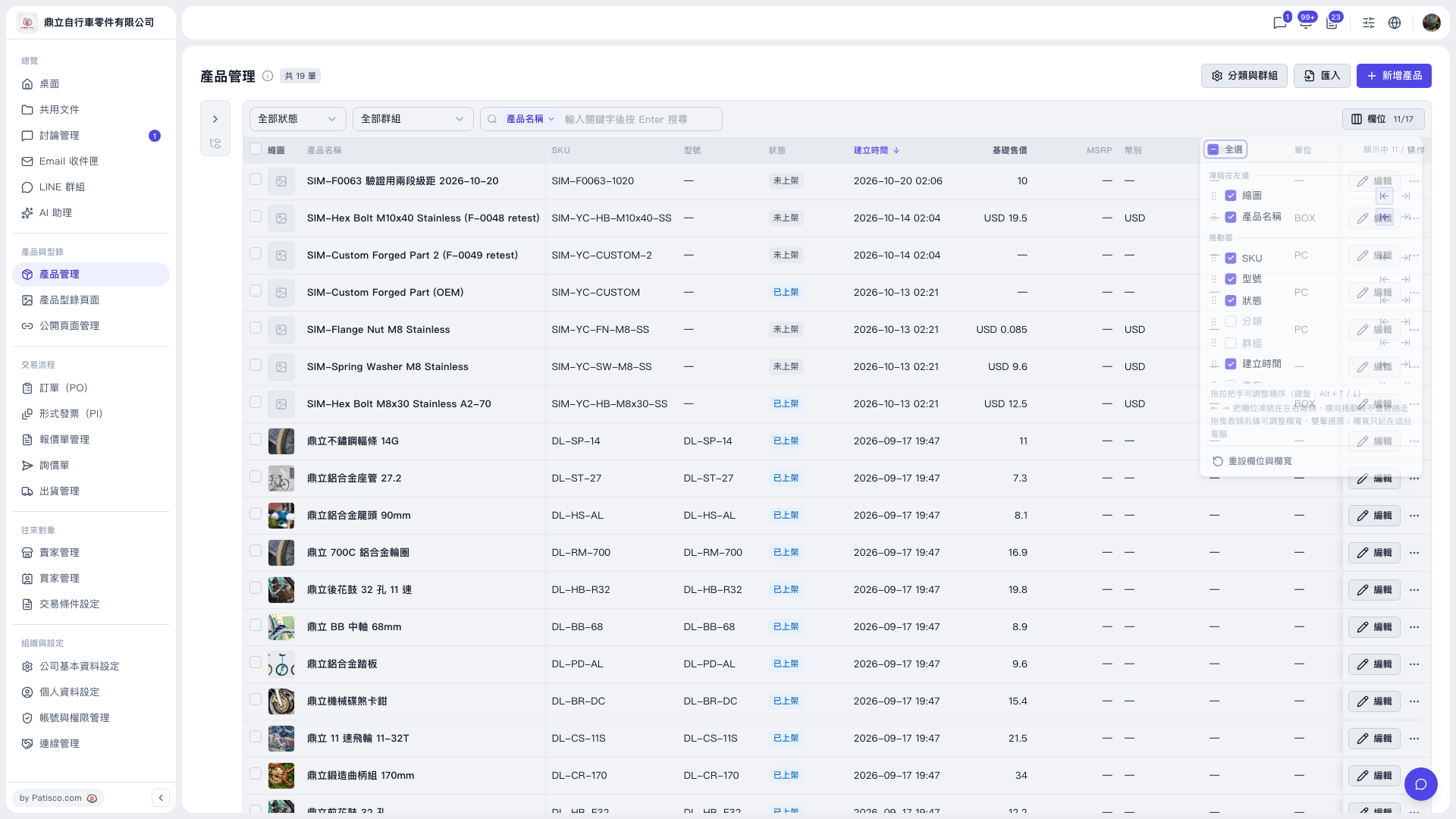
1. On the Product Management page, click "Columns 11/17" to open the column settings panel. 2. Drag the handle in front of a column to change the column order. 3. Click a column's freeze icon to pin that column to the left side (it will appear in the "Frozen on the left" section), so it stays in place when you scroll horizontally. 4. To restore everything, click "Reset columns and widths" at the bottom of the panel. Both column visibility and column widths return to their defaults. 5. After adjusting, you can use the "All statuses" and "All groups" filters above the table, or type a keyword in the product name search box and press Enter to find a product, then click "Edit" on that row to change its content.
 V5 新桌面版|產品管理