
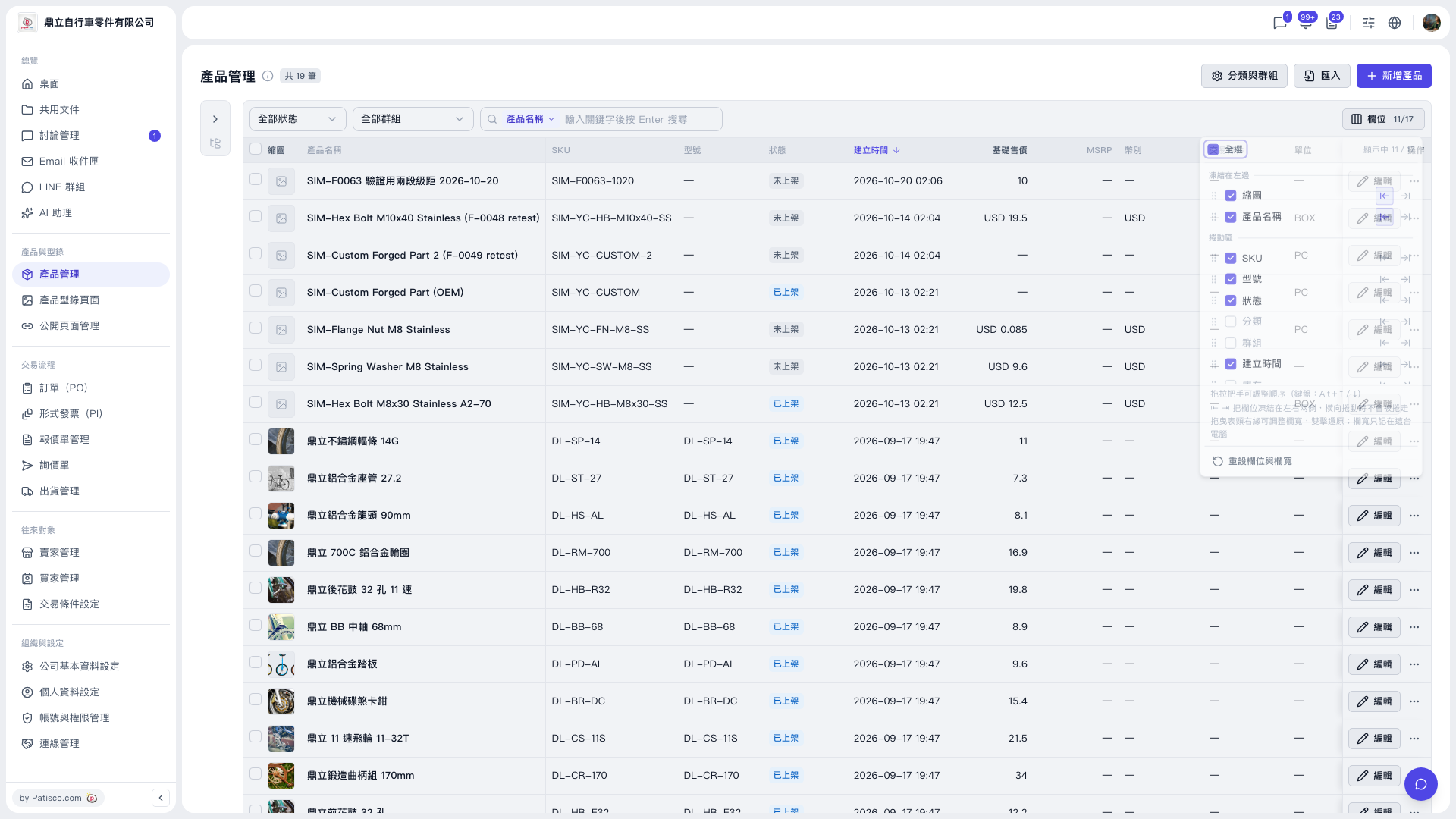
1. Go to the Product Management page (https://v5.patisco.com/products). 2. Click the "Columns 11/17" button in the toolbar at the top right of the table to open the column settings panel (11/17 means 11 columns are currently shown out of 17 in total). 3. In the panel, check or uncheck columns, such as SKU, model number, status, category, group, and created time. To check or uncheck all at once, click "Select all" at the top left of the panel. 4. To change the order, drag the handle on the left of a column. To fix a column's position, use the freeze button on the right to freeze the column on the left or right. 5. Click an empty area outside the panel to close it, and confirm that the table columns have been updated.
Note: The columns base price, MSRP, currency, trading condition, and unit are not shown by default. Check them in the panel when you need them. Once checked, they are saved in your column preferences.
 V5 新桌面版|產品管理